
booking system Faqs
How do I view my Memberships, Loyalty Passes & Gift Card amounts?
1
PLEASE NOTE: If it is your first time signing in on our new system and you have an active membership, you will need to find an email we shared on 10 June 2026 and follow the link to connect your membership to your account. Please make sure to check your spam! If the email is not there, email us office@thebarrelsauna.ieand we will send you the link.
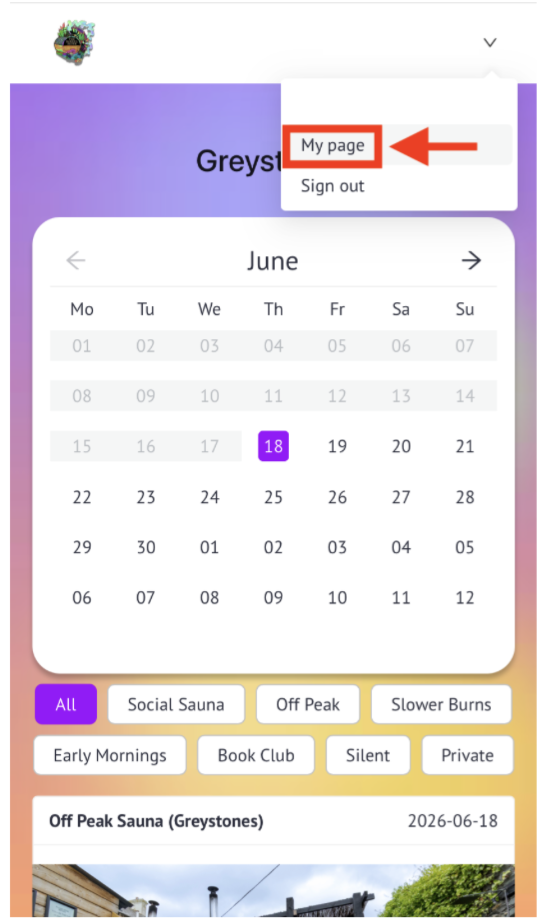
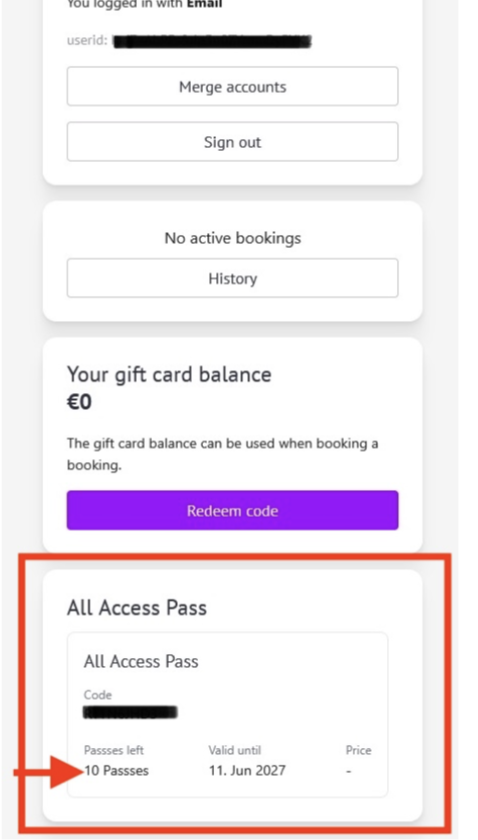
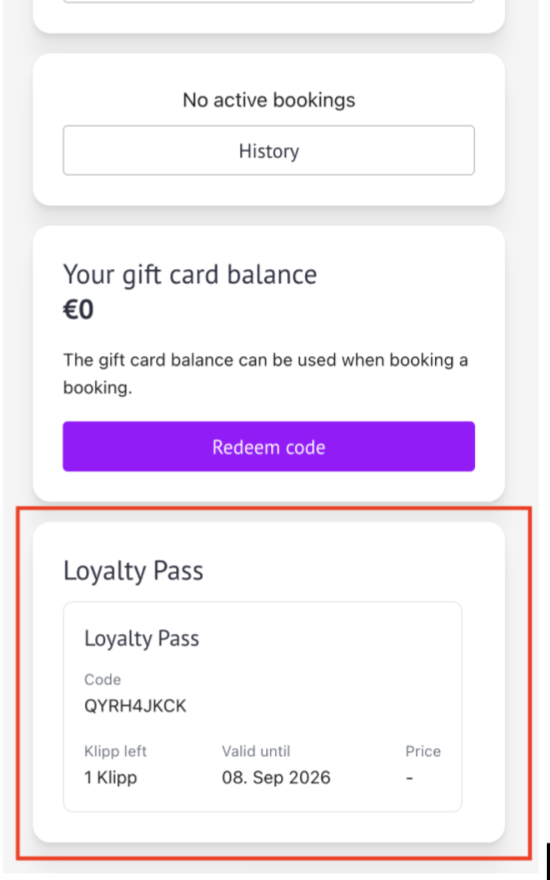
STEP 1: Once signed in, click into your name in the top right corner. In the drop down, click “My Page”. Under “Active Memberships” you will see the amount of passes you have left.
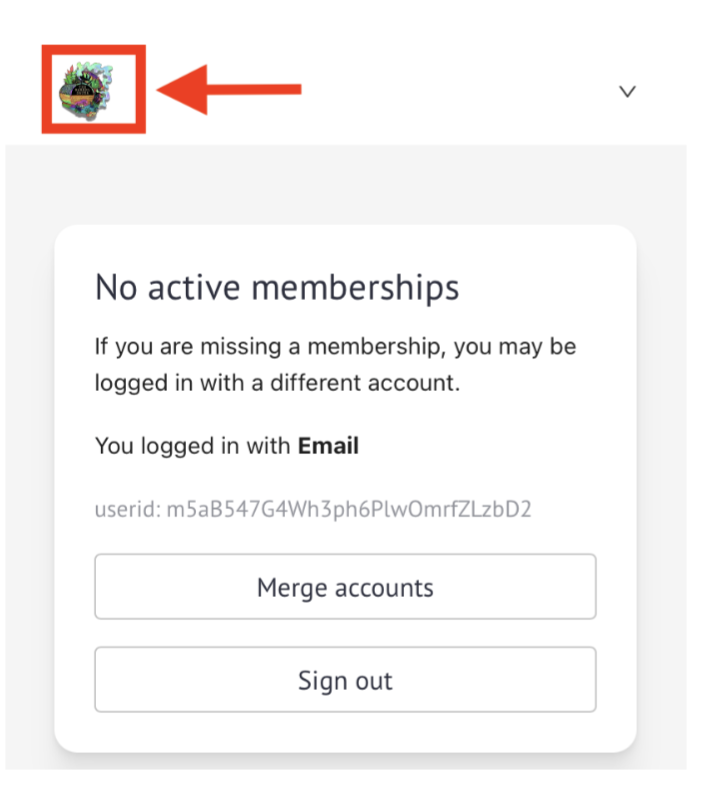
STEP 2: To go from viewing your passes to booking a session, simply click The Barrel Sauna logo in the top left corner of the screen to go back to our website.
Booking in
2
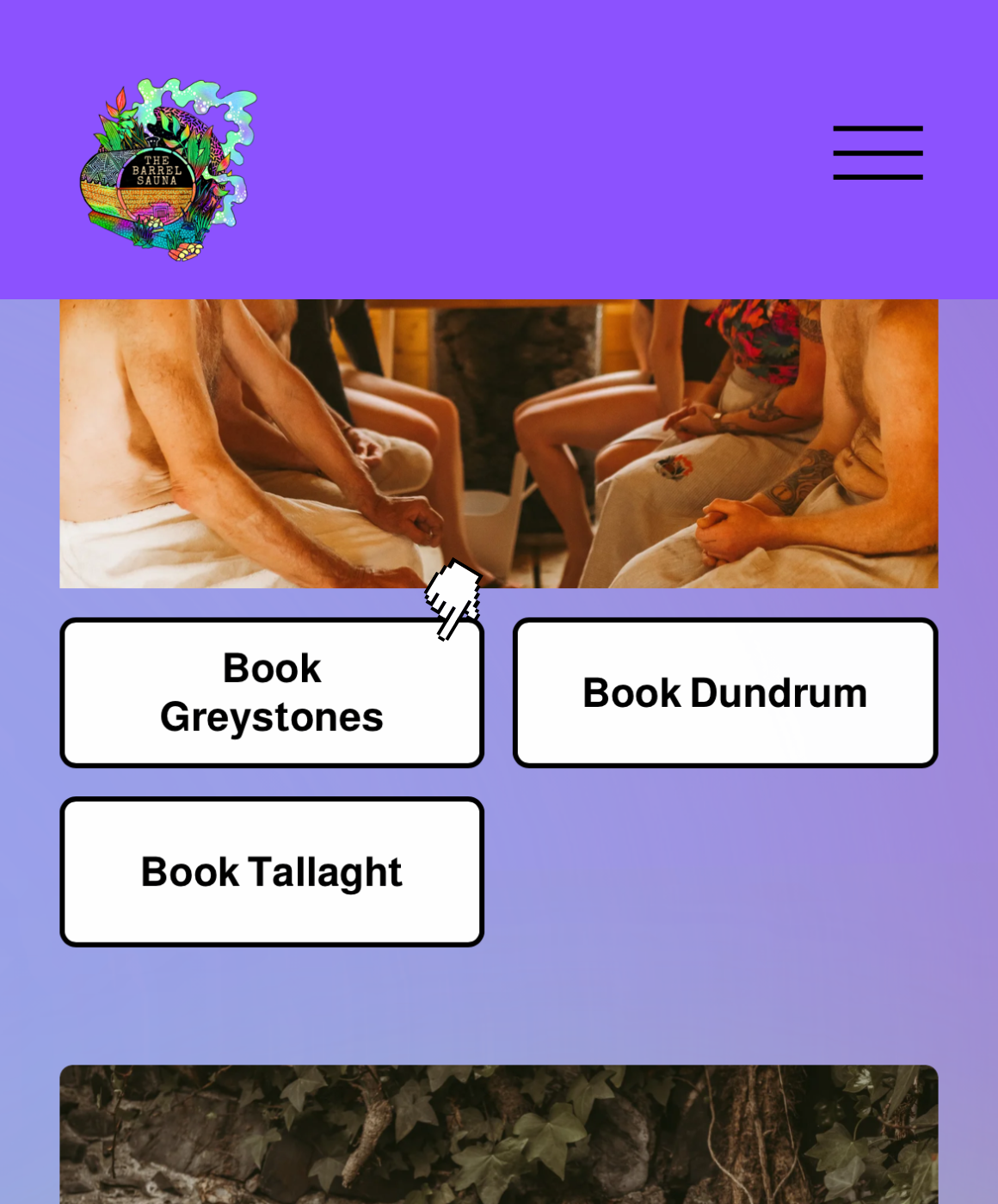
STEP 1: Go to our website, choose your location and clock BOOK NOW.
STEP 2: Click to your date of choice and scroll down view the schedule
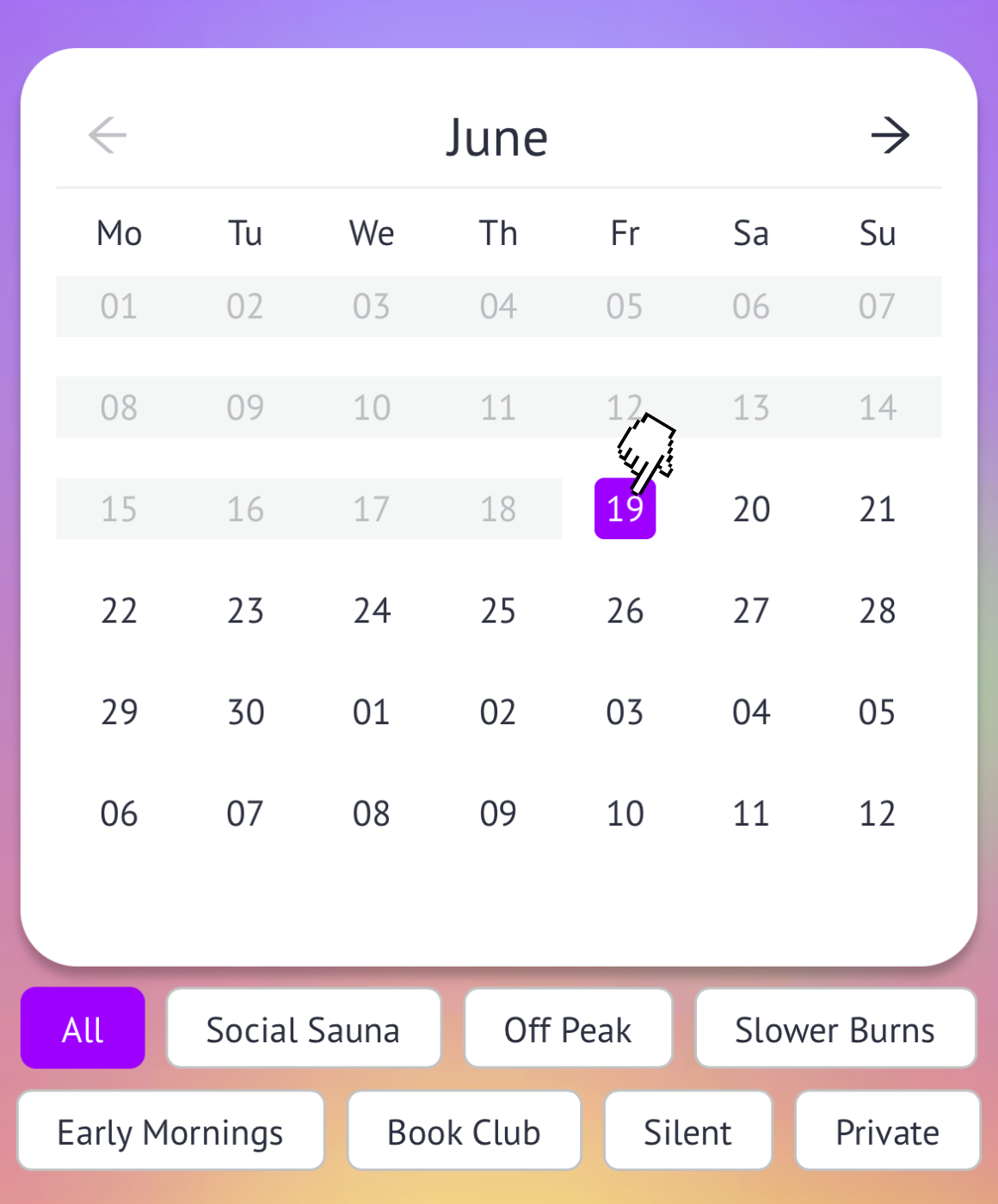
STEP 3: OR select a specific session type to see what days they’re scheduled, such as “Off Peak”, “Social” or “Silent”. Select the time slot.
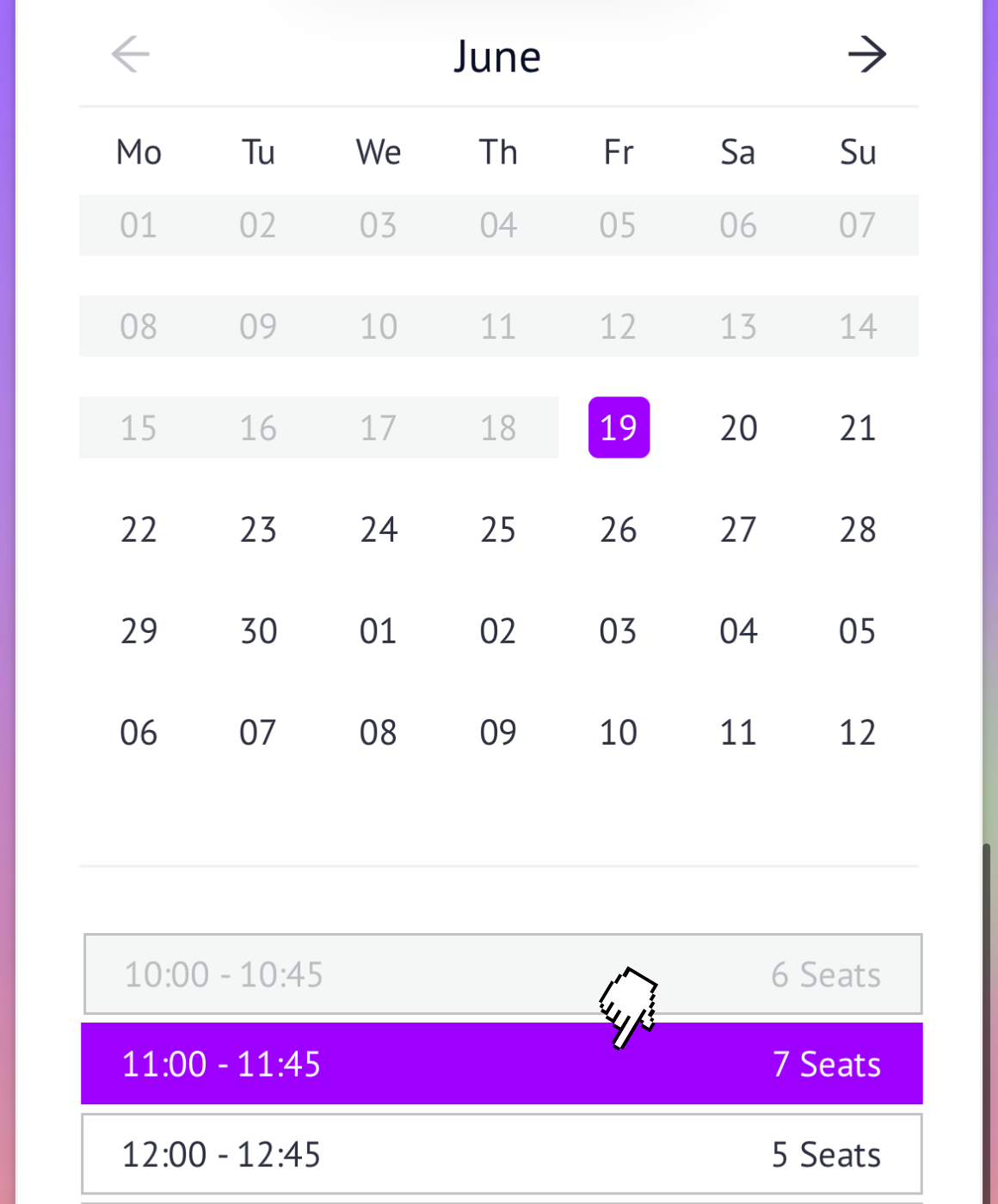
STEP 4: You must read and sign the waiver the first time you book in with us, or your booking will not be confirmed.
Once you have signed the waiver, you may reuse it for any future bookings. It will remain on your account, and when booking in for a session, simply click “Reuse” on the saved waiver.

How do I Buy pass bundles & gifts cards?
3
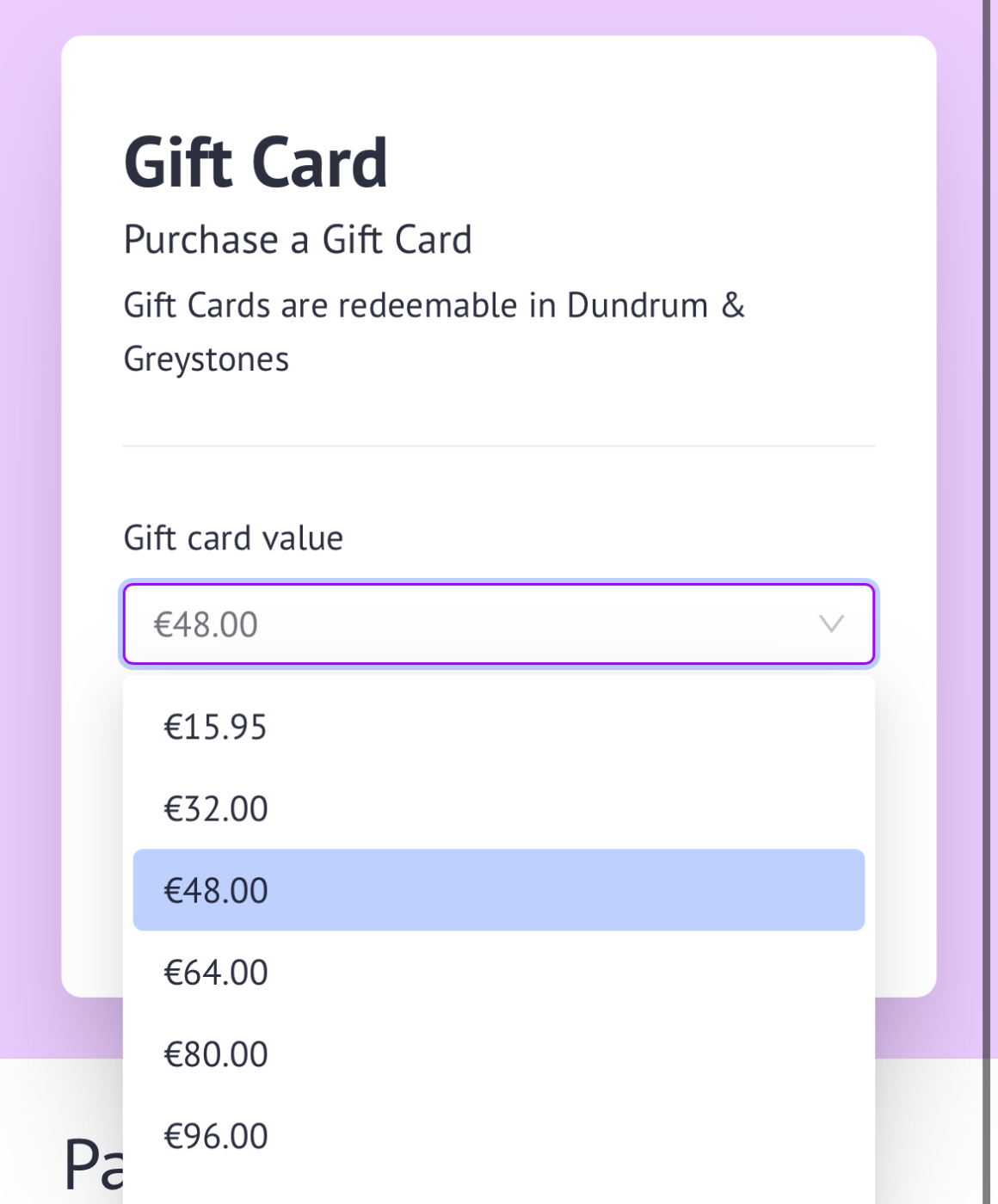
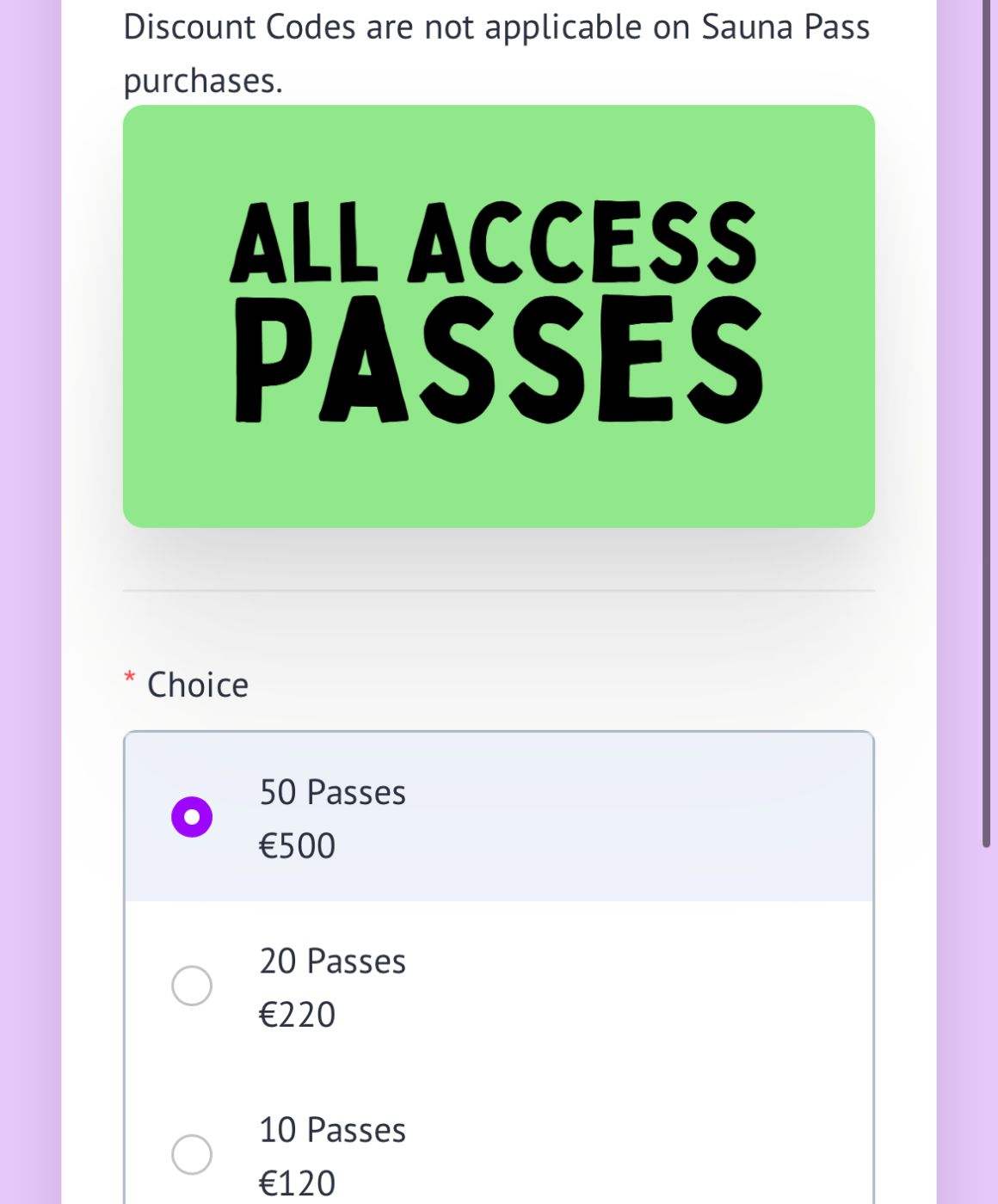
STEP 1: Follow the links on our website to purchase Pass Bundles and/or our Gift Cards.

STEP 2: Select your amount of choice for membership or gift card, enter the name and email of the membership/gift card receiver.
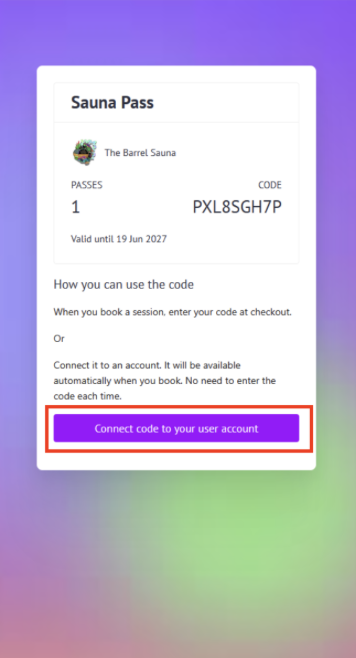
STEP 3: Activate the membership by going to “My Page”, and clicking “Connect code to your user account”
How do I use my Membership passes, Loyalty Passes or Gift Card when I’m booking?
4
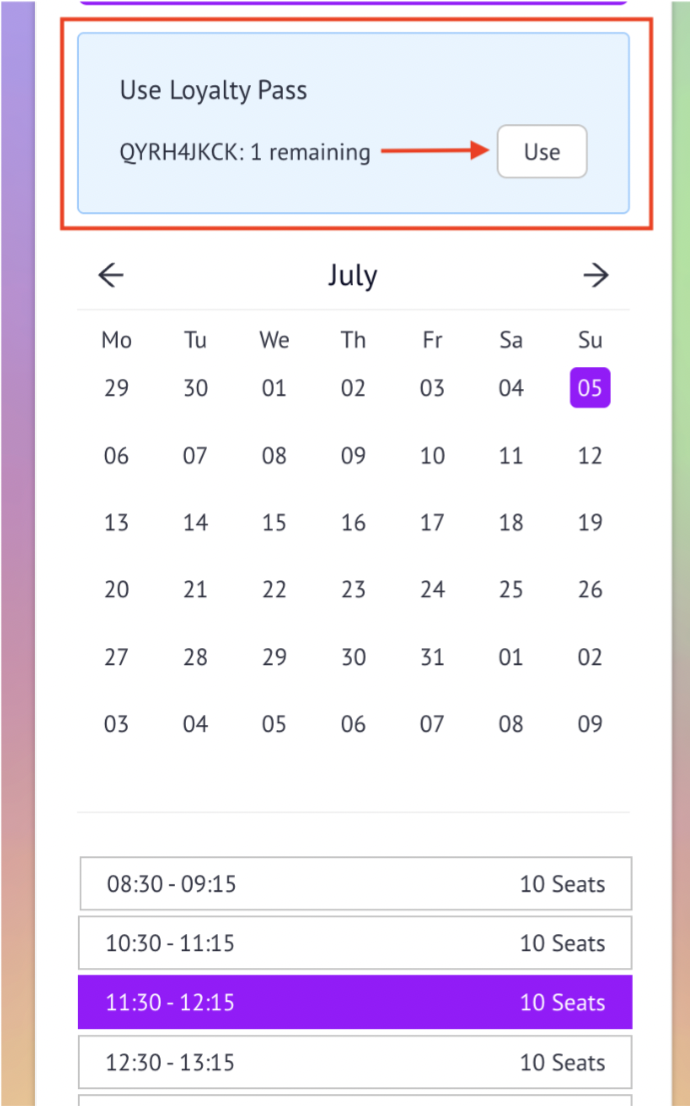
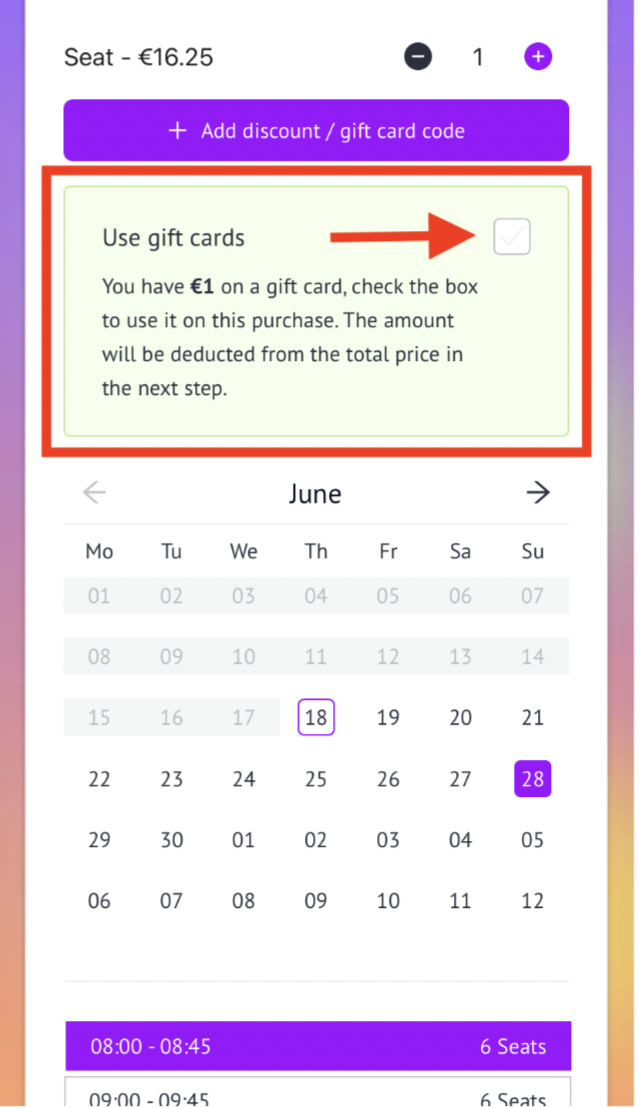
One Step: When you have a pass or Gift Card credit to use, there will be an option to pay for the session with the pass/credit. A box will appear above the calendar grid which lets you know the active membership you have, simply click “use” to apply it to the booking.